-
Quick Installation: Use Ninite to install multiple apps simultaneously with a single click, saving time and effort.
-
Effortless Updates: Keep apps up-to-date with Ninite by running the installer again, ensuring security and performance.
-
Command-Line Simplicity: Use Windows Package Manager (Winget) to update all apps with a single command in Command Prompt or Powershell.
-
Secure System: Regular updates protect against security vulnerabilities and improve overall system performance.
Install and Update Applications with Ease on Windows Based Systems
10 min read
Easily Install Applications on Windows
Installing essential software on a new Windows machine (or even reinstalling on an existing one) can be time-consuming and a tedious process and most of us are constantly looking for easier ways to get these done. Ninite.com, is a free user-friendly website that allows you to select and install multiple applications simultaneously.
The site offers a quick, hassle-free way to install multiple applications at once, without needing to click through each installation window and clicking on the ‘Yes’ buttons and reading through the EULA. Here’s a step-by-step guide on how to use Ninite to streamline the process.
- Visit Ninite.com in your web browser.
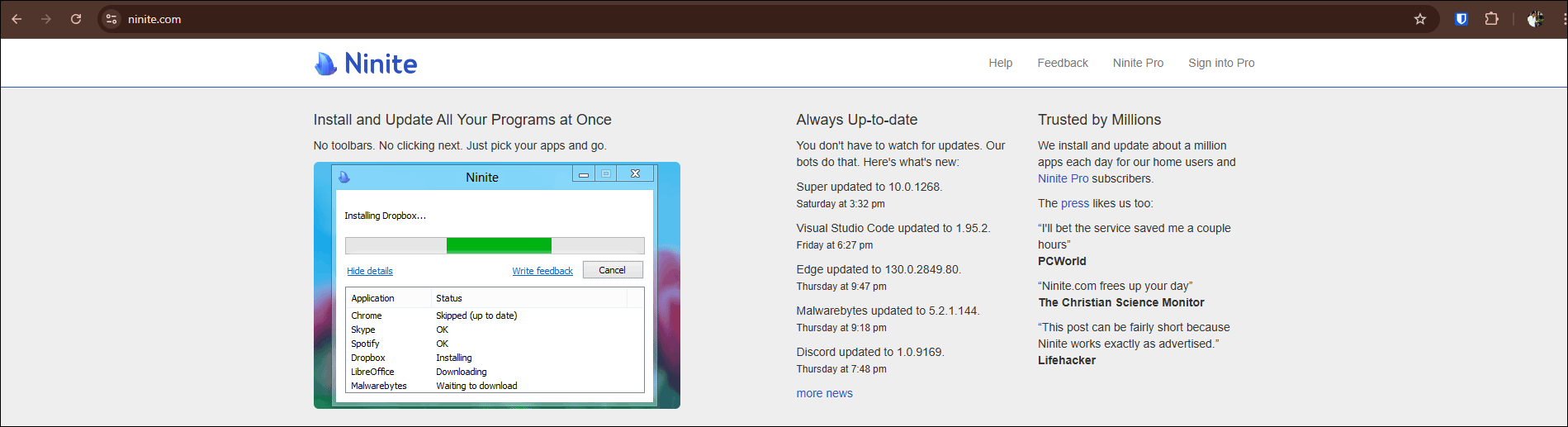
- Browse through the list of applications listed on the homepage and select the Applications You Want to Install by checking the checkboxes next to the application names.
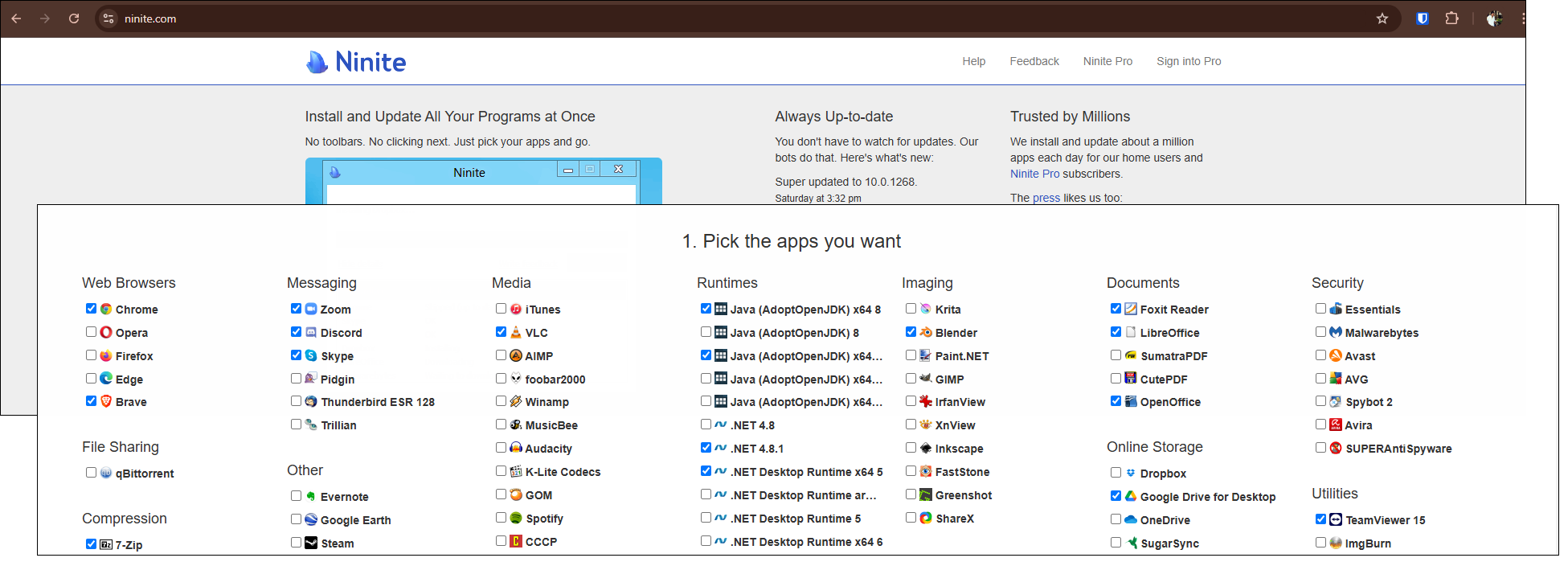
- Once you have selected the list of applications which you want to install, click on the ‘Get Your Ninite’ button at the bottom of the page. This will create a customized installer file that includes all the applications you selected. Download and save the installer file to your computer. It is recommended to keep the installer saved on the computer as the file can later be used to update the corresponding applications.
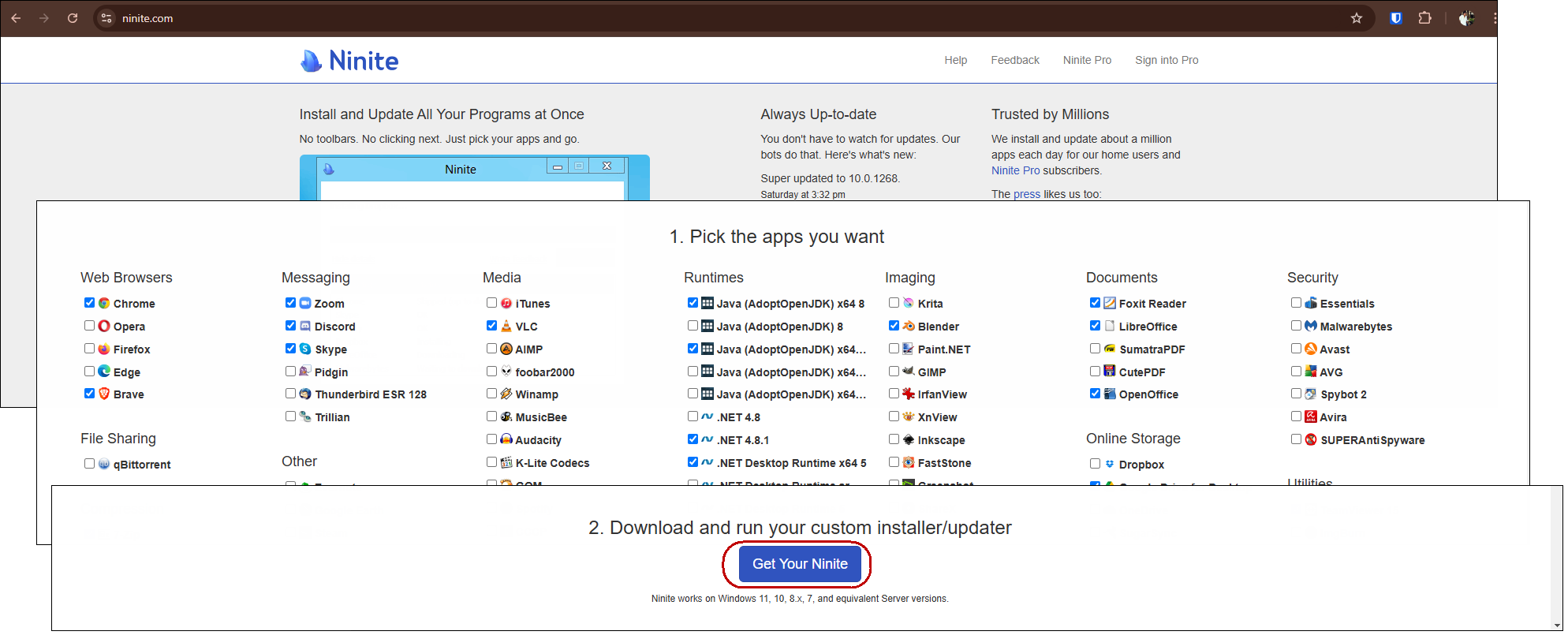
- Now, in order to install the selected applications, just run the installer which we have just downloaded. Double click on the saved installed file in order to initiate the process. No extra clicks or prompts are required to get the selected applications installed on the computer. Ninite will take care of the installation in the background.
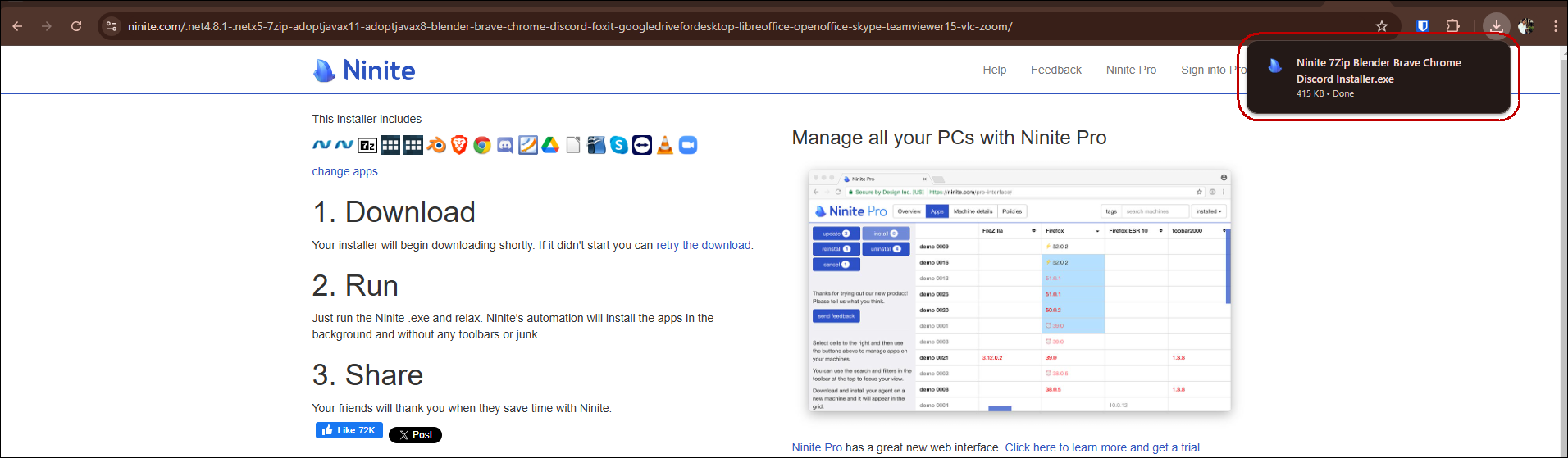
- No extra clicks or prompts are required to get the selected applications installed on the computer. Ninite will take care of the installation in the background.
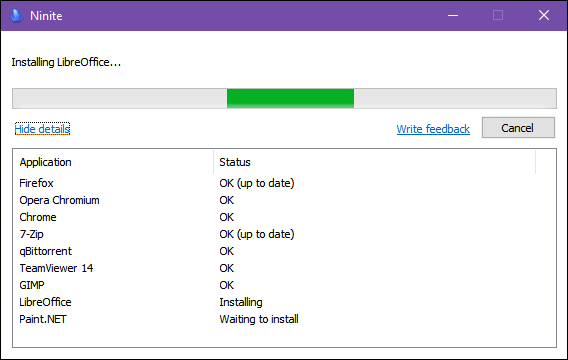
- Close the window once all the applications are done being installed.
Update Applications Using the Ninite Installer
Keeping your applications updated is essential for security, performance, and access to new features. We often install applications but do not follow up and update them. This might seem convenient to keep them as is, but it may many times create security issues for the system.
It is always a good practice to keep the applications updated alongside the operating system. Ninite installer can be used to update the applications with a few clicks. Please refer to the following steps regarding how to use the Ninite installer to keep the applications updated:
- Locate the Ninite installer file saved in your computer.
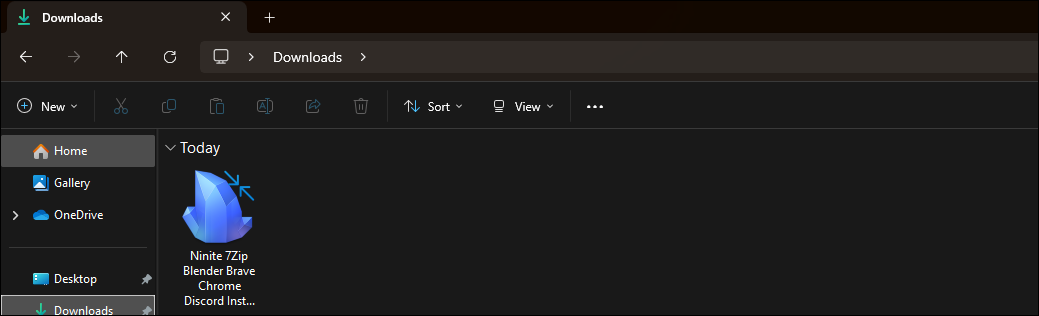
- Double click on the installer and provide confirmation. This will start updating the applications which are currently installed into the system.
Update Applications Using the Windows Package Manager
Windows package manager is a command line tool which can also be used to update most of the applications installed on the windows computer regardless of the sources which they were downloaded from. Following are steps which details how to update applications using the windows package manager, also known as Winget:
- Open Command Prompt or Powershell with Administrator privileges.
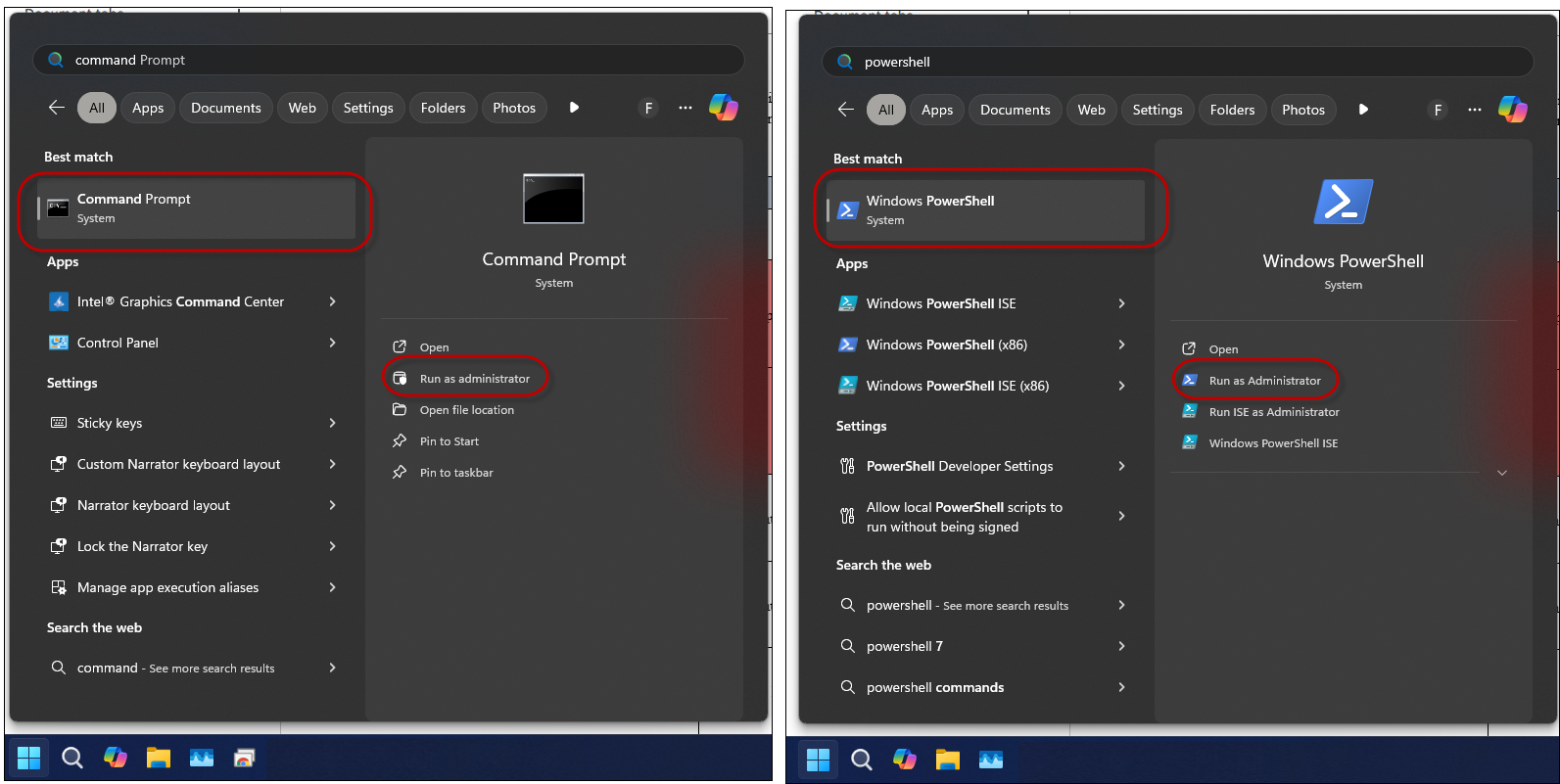
- Type in ‘winget upgrade –all –include-unknown’ on the terminal and press the ‘Enter’ button.
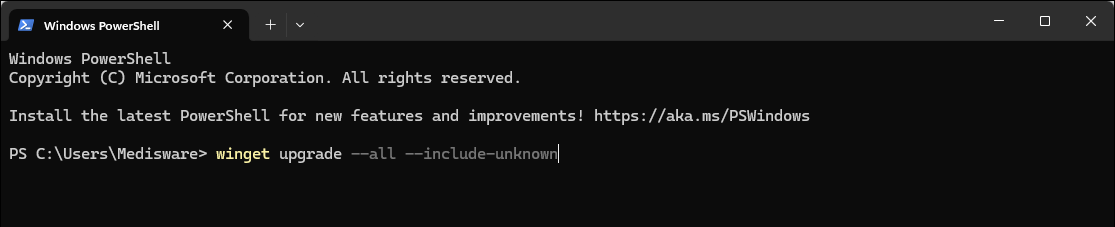
- If the system asks for confirmation or presents with a license agreement, type in ‘Y’ and press the ‘Enter’ button. This will start installing the updates to all of the available applications. Winget will download and install updates, handling most of the process automatically. This approach is great for users comfortable with command-line operations.
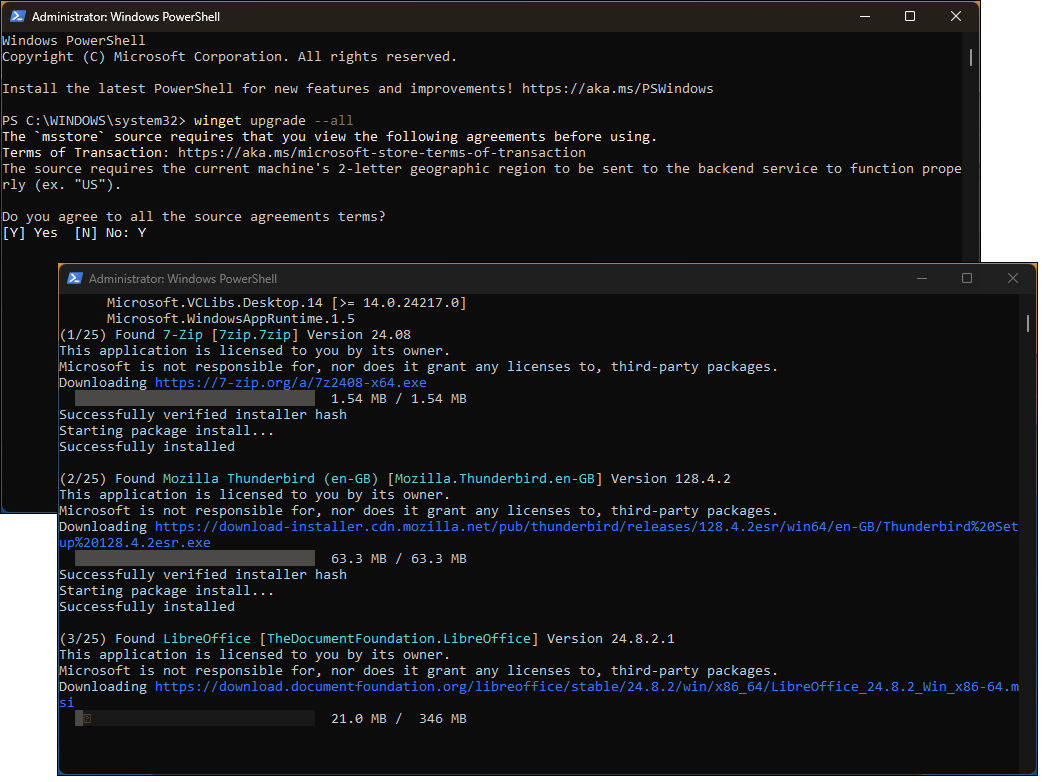
Now that we know multiple ways regarding how to easily install and update applications, we should keep our system up to date in order to avoid security vulnerabilities.
Frequently Asked Questions
Ninite is a web-based tool that lets you select multiple popular applications and install them with a single installer file. It automates the installation, bypassing unnecessary prompts and additional software offers, making it quick and efficient.

I work at the point where product decisions, system architecture, and engineering execution meet. At Mediusware, I’m accountable for how technology choices affect reliability, scale, and long-term delivery for our clients.
Featureblogs
Relatedblogs
01
How to Create a Stunning WordPress Website in 2024: Step-by-Step Tutorial02
How Mediusware Empowered Protesters, Strengthened the Economy & Showcased Employee Resilience in the 2024 Movement03
Mastering Error Handling in Rust with Essential Techniques04
Best Practices for Writing Clean Code05
Let's Deep Dive Into Threads with RustAuthorblogs
01
How Digital Agencies Can Deliver Custom Software Without Hiring Developers02
AI in FinTech: Build, Buy, or Integrate? A Founder's Decision Framework03
How to Choose a SaaS MVP Development Company04
How Seed-Stage SaaS Teams Add Engineering Capacity Without Hiring Chaos05
Why Seed-Stage SaaS Startups Struggle to Ship Fast